
The Timesheet page (detail format) is used to review and add/edit punch details and absence hours totals based on pay code and select transfer groups (Department, Job, etc...)(continued below).
For more information on the Punch and Transfer functions, click here.
The Timesheet page (detail format) is used to review and add/edit punch details and absence hours totals based on pay code and select transfer groups (Department, Job, etc...).
Employees can
Review, edit, and approve employees' timesheets. Employees and supervisors can change data fields such as date, pay code, IN time, OUT time, earnings, deductions, group information, etc.
View summary timesheet information for the overall departmental cost and performance evaluation, information such as total regular hours, OT1, OT2, as well as regular pay amount, OT1 pay amount, OT1 pay amount, and total pay period pay amount.
Create work schedules and review budget hours.
View current and past work schedules.
Validate employee benefit accruals such as number of available and used vacation hours, and number of available and used sick hours, etc.
Generate valuable management reports with just a few key stokes sorted for any time frame on any labor data fields.
The NOVAtime 5000 Timesheet comes with a Daily Hours column. The Daily Hours column is a mandatory column on the Detail Timesheet page. It adds up all the work hours for each workday.
The Timesheet Editor provides an intuitive spreadsheet-like interface for supervisors to review and edit timesheets. It has:
Action Icons:
Save
Delete - Delete a timesheet record
Undo
Print - Prints the Detail Timesheet Report
Columns - Allows you to configure the columns on this timesheet screen. Click here for more details.
Salaried Timesheet or Hourly Timesheet
Approve - This icon is available for supervisors to approve timesheet for the entire pay period. Not available for the Employee Web Services.
Daily Approval - This icon is available for supervisors to approve timesheet daily. Not available for the Employee Web Services.
Recalculate - Recalculate timesheet
Multi Add - This MultiAdd button is designed to create multiple attendance records for a selected GROUP of employees. Click here for more information.
Insert/Repost - This Insert button is designed to ease the task of correcting attendance punches especially for companies using Swipe and Go option on the data collection terminals with employees forgetting to punch OUT for lunch. Click here for more information.
Submit - This icon  is available for employees to submits timesheet (will disappear after a timesheet is submitted)
Open Timesheet - This icon  only appears if the timesheet for the selected pay period has not been opened yet. You cannot edit unopened timesheets.
Timesheet Period: The system defaults to the current pay period; however, you have options to change the pay period by clicking on the Pay Period list box.
Detail Record -
Detailed Timesheet lists all time punches.
For an employee, the following information on a time punch may be changed if the timesheet is not submitted:
Date - Click on the drop down list box to select the date or input directly
Pay code - Click on drop down list box to select any applicable pay code
IN Time and OUT Time - The acceptable formats are
"hh:mm": For example, "08:00"
"hhmm" (without : between hh and mm) for IN time. For example, "0815" is an acceptable input format for IN time; however, "0515" is not an acceptable format for OUT time but "1715" is ok.
"hhmm" with am or pm for OUT time. For example, "0503pm".
To avoid entering "am" and "pm", use the military time. For example, "1703" would be OK as an OUT time.
To change an existing punch record, click on the field of the time punch record, either type over the existing content or select the entry from the drop down list box.
To transfer to another job, click on Job to select the job.
Click on any time punch record, it will put an * next to the record being edited.
In Modified Column (usually next to the "In" column in the timesheet):
An asterisk (*) may appear and that indicates that the In punch had been manually added or modified.
A "t" may appear and that indicates that there was a tardy exception associated with the In punch that was overridden to no longer count as a tardy.
Out Modified Column (usually next to the "Out" column in the timesheet):
An asterisk (*) may appear and that indicates that the Out punch had been manually added or modified.
An "e" may appear and that indicates that there was an early Out exception associated with the Out punch that was overridden to no longer count as a out early.
Hourly Timesheet allows you to input total work hours per pay code, per job, and per workday.
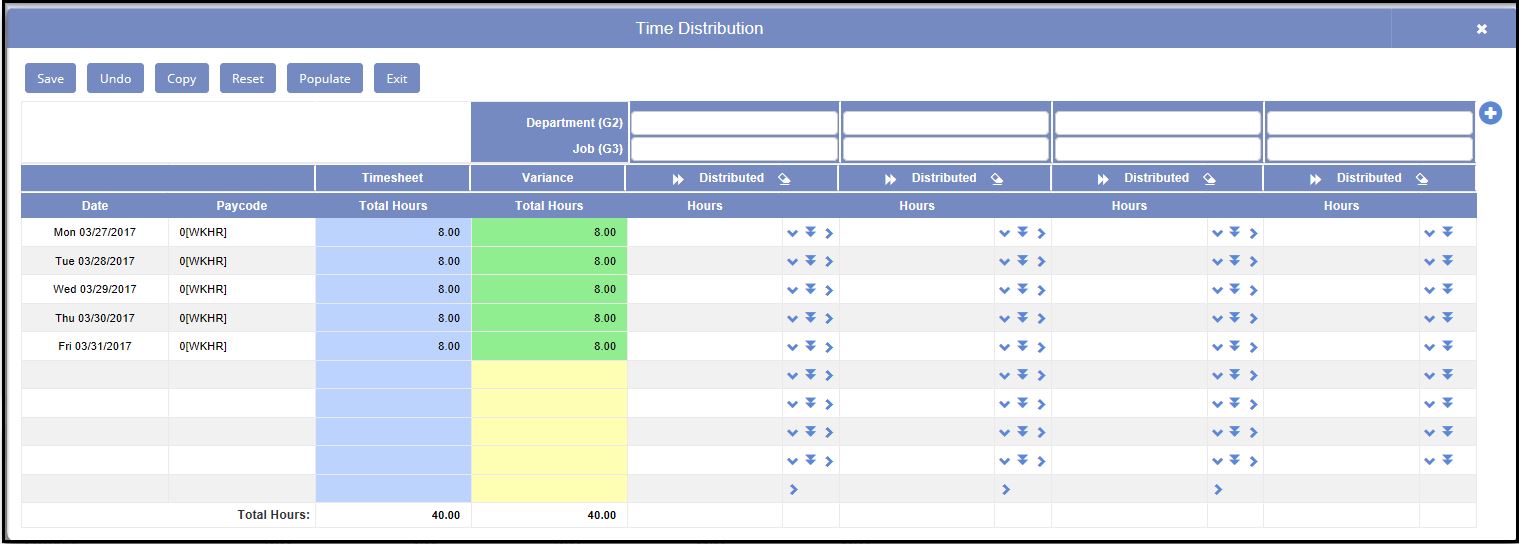
Time Distribution: Allows employee or supervisor to manually distribute employee daily hours to different group 1 and group 2 items. Visible only if Time Distribution is active.
Summary Sections: The following Summary Sections are available in the Detailed Timesheet page -
Timesheet Summary - Summarizes an employee's hours (Regular Hours, OT1, OT2, etc.) as well as earning and deductions based on Pay code and Department (Group). Job automatically defaults to employee home job
Accrual Summary - Visible only if Accrual Module is active. Accrual summary and detail information is also on the Accrual page.
Point System Summary - Visible if Point System module is active. Point System summary and detail information is also on the Point System page.
Pay Matrix Summary - Visible if Pay Matrix module is active.
It shows how the hours are distributed based on Pay Matrix distribution rules (like for Shift Differential or Premium).
Pay Matrix module enhances the system’s ability to distribute employee work hours for shift differential and premium hours, or distribute employee work hours to different pay codes
Includes a Matrix-style timesheet edit screen with full Pay Matrix Audit trail for ease of resolution for any distribution questions.
Time Distribution and Time Distribution Summary -
Shown below are various summary sections available in the timesheet screen:


