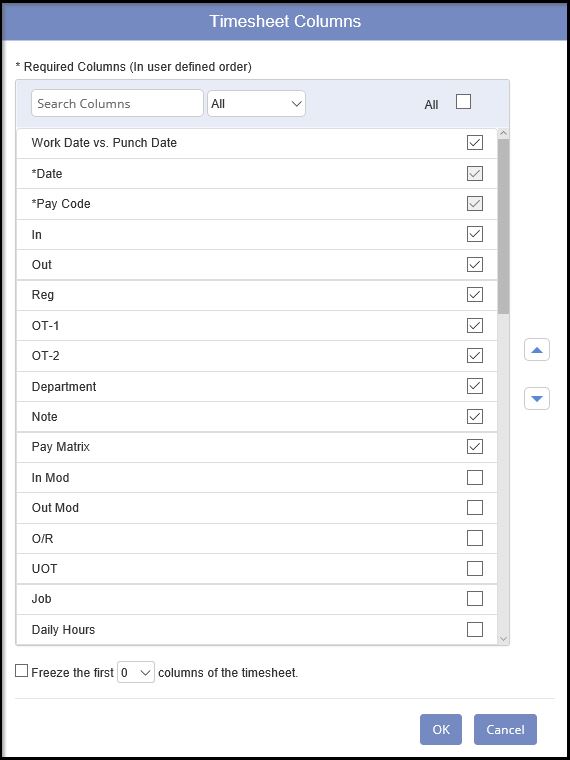
The Columns button is used to configure the columns and their order that will be displayed on the timesheet page (continued below).
The Columns button is used to configure the columns and their order that will be displayed on the timesheet page. It allows you to configure the columns on this timesheet screen. Some of the columns are:
Date/Day - Displays the date & the day of the week -> 07/11/2005 Mon
Date Out - Displays actual OUT punch date
Notes - Each timesheet record has a notes field accessible by both EWS and SWS alike. Notes can appear on web Employee Timecard report
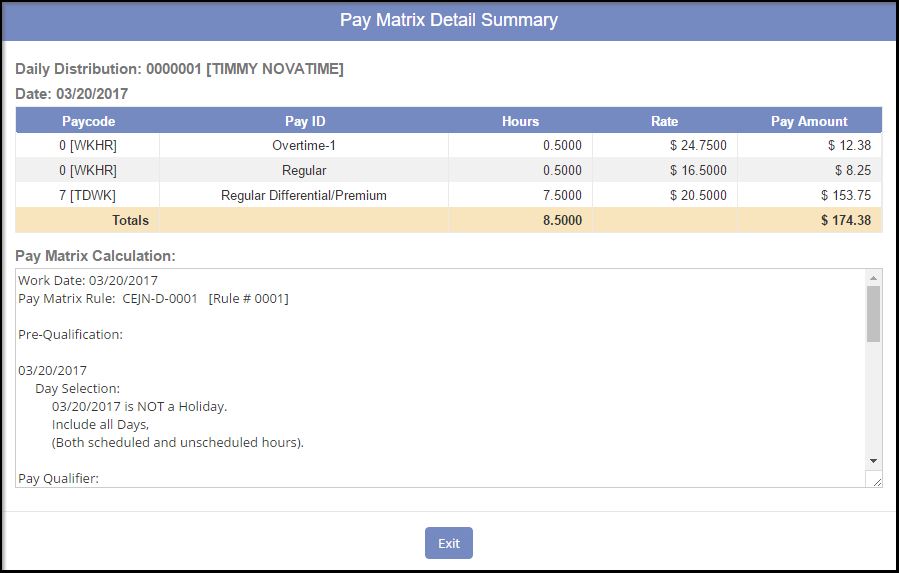
Pay Matrix - This field allows the user to click and audit the Pay Matrix process for each day, and view the daily Pay Matrix distribution
Schedule - Displays the employees schedule
Shift/Pay Expression - Displays the shift number and pay expression
Total Hours - Displays Total hours paid for each record
Work Date - Displays actual IN punch date
Daily Notes:
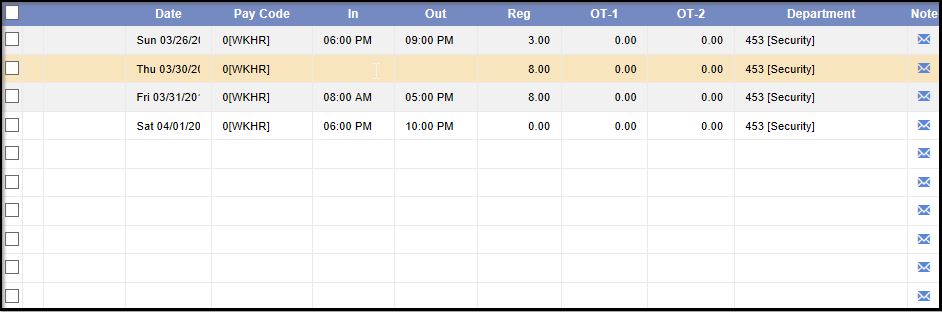
Use the Columns button and select the Notes column and click OK. A user can click on the Notes field for any record, or they can click on the pencil icon to the left of the selected record. EWS and SWS users have access to the same field (based on access setup). Once a note is created and the timesheet is saved, a  will appear in the Notes field signifying that record has notes. The notes can be printed on the Employee Timecard Report from the Report category.
Pay Matrix:
Use the Columns button and select the Pay Matrix column and click OK. A user can click on the Pay Matrix field  for any record, and they can view the Pay Matrix Daily Distribution to review how the employee hours were distributed. Also available is the Pay Matrix Calculation or Audit area. This can be used to review how the system calculated the Pay Matrix Daily Distribution area.