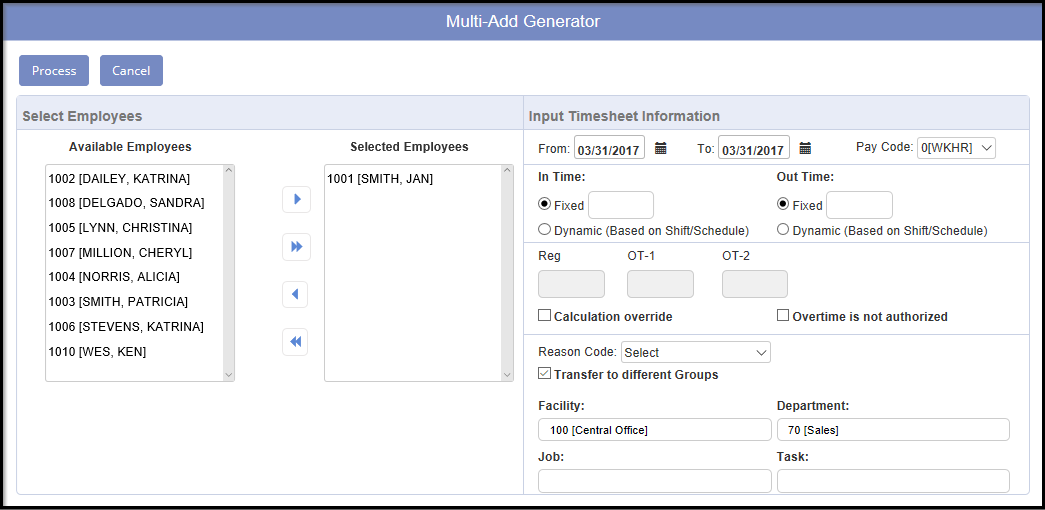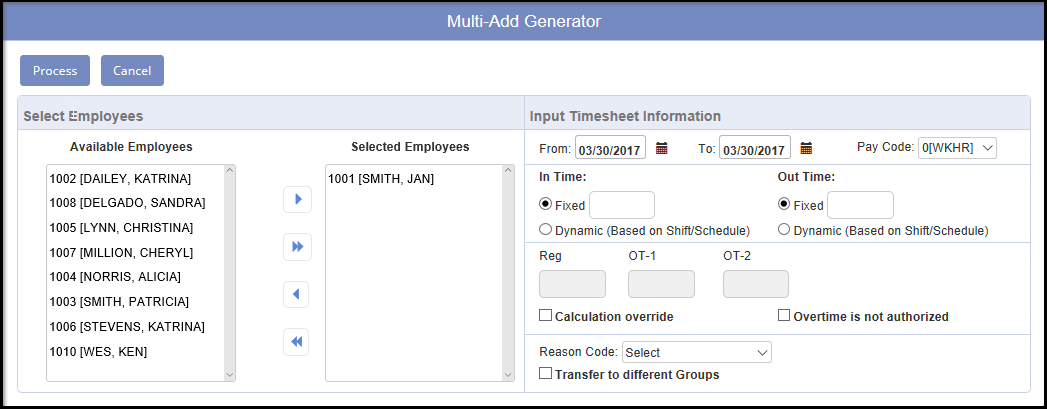
The Multi Add button is used to add multiple attendance records in one simple process.
Multi Add - The Multi Add button is designed to create multiple attendance records for the employee. It is recommended that use of this feature be restricted to qualified employees only. If multiple records are added in error, the only way to remove them is to manually delete them record-by-record, employee-by-employee.
Prerequisite: You must save the current timesheet changes before running this option. If changes to your attendance records are not saved, it will prompt a window and ask you to save your data before posting the holiday attendance records.
To run Multi Add:
Input Timesheet Information -
From - To Date Range
IN / OUT Punch Time: Options of Fixed time or Dynamic Time (based on Shift/Schedule)
Calculation Override option: Used to override the hours worked for Regular Hour, Overtime 1 Hour, and Overtime 2 Hour
Transfer to Different Groups option: This feature allows you to transfer a selected group of employees (based on the information entered at Step 2 Select Employees) from a date range chosen (based on the From Day and the To Day). On the Step #1, click on the Change Transfer Settings button, it will bring up the Transfer Punch Edit screen. The system will automatically displays the Transfer Punch Edit screen if you activate this Transfer to Different Groups feature and click on the Next Step. On this Transfer Punch Edit screen, you have options of transferring one or all of the Groups, and leaving the other Group settings at the original settings.
Overtime Is Not Authorized option: Any overtime hours in Overtime 1 Hour and Overtime 2 Hour will be treated as zeros for overtime calculation. If overtime hours are present, they will be shown with with [ ] wrapped around the overtime hours.
Reason Code
Here are a few things to know before running Multi Add:
An employee must have sufficient accrual hours in order for NOVAtime to generate any non-calculated pay code attendance records (i.e. vacation). If the system encounters an employee with insufficient accrual hours, it will pop up a window and request for your acknowledgement before it processes the next employee.
If a company wants to have audit trail of the actual punch OUT time for each employee, Multi Add is ideal to handle situations of companies shutting down early right before holidays.
For example, your company allows all the employees to leave at 12:00 pm the day before Thanksgiving, and pays until 5:00 pm. To avoid paying any employees leaving prior to 12:00 pm, simply create a Multi Add record of IN at 12:00 pm and a dynamic OUT time. Here is an example of a 8 to 5 employee who punches IN at 8:00 am.
For employees punching OUT on time at noon: two attendance records will be generated:
8:00 am - 12:00 pm (The system loads the actual punch OUT time as the OUT time for the first attendance record).
12:00 pm - 5:00 pm (The IN time is determined by the greater value between the MultiAdd IN time and the actual punch OUT time; the OUT time is determined by the employee’s shift ending time)
For employees punching OUT early, say 10:00 am: the following attendance records will be created
8:00 am - 10:00 am (The system loads the actual punch OUT time as the OUT time for the first attendance record).
12:00 pm - 5:00 pm (If the punch OUT time is less than the MultiAdd’s IN time, the system loads the MultiAdd’s IN time as the IN time for the second attendance record).
For employees punch OUT late, say 2:00 pm: the following attendance records will be created:
8:00 am - 2:00 pm (The system loads the actual punch OUT time as the OUT time for the first attendance record).
2:00 pm - 5:00 pm (If the punch OUT time is greater than the MultiAdd’s IN time, the system loads the actual punch OUT time as the IN time for the second attendance record)
Here is a simple In/Out
You can also insert a transfer. If you select transfer to different groups, you need only select which groups that you are transferring out of the default assignments. So if you enter just the Operation for 3 [FREIGHT], you will be transferred to your default group 1-6 & 8 (depending on # of groups using. You also only need to input the start time if inserting a transfer